Supported Boards
BrainFlow Dummy Boards
Playback File Board
This board playbacks files recorded using other BrainFlow boards.
It allows you to test signal processing algorithms on real data without device.
To create such board you need to specify the following board ID and fields of BrainFlowInputParams object:
BoardIds.PLAYBACK_FILE_BOARDmaster_board, it should contain board ID of the device used to create playback filesfile, it should contain full path to recorded fileoptional:
file_aux, use it if your master board has auxiliary presetoptional:
file_anc, use it if your master board has ancillary preset
Initialization Example:
params = BrainFlowInputParams()
params.file = "streamer_default.csv"
params.file_aux = "streamer_aux.csv"
params.master_board = BoardIds.SYNTHETIC_BOARD
board = BoardShim(BoardIds.PLAYBACK_FILE_BOARD, params)
Supported platforms:
Windows >= 8.1
Linux
MacOS
Devices like Raspberry Pi
By default it generates new timestamps and stops at the end of the file. You can override such behavior using commands:
board.config_board ("loopback_true")
board.config_board ("loopback_false")
board.config_board ("new_timestamps")
board.config_board ("old_timestamps")
In methods like:
get_eeg_channels (board_id)
get_emg_channels (board_id)
get_ecg_channels (board_id)
# .......
You need to use master board id instead Playback Board Id, because exact data format for playback board is controlled by master board as well as sampling rate.
Streaming Board
BrainFlow boards can stream data to different destinations like file, socket, etc directly from BrainFlow. This board acts like a consumer for data streamed from the main process.
To use it in the first process(master process, data provider) you should call:
# choose any valid multicast address(from "224.0.0.0" to "239.255.255.255") and port
add_streamer ("streaming_board://225.1.1.1:6677", BrainFlowPresets.DEFAULT_PRESET)
In the second process you shoud create Streaming board instance and this process will act as a data consumer.
To create such board you need to specify the following board ID and fields of BrainFlowInputParams object:
BoardIds.STREAMING_BOARDip_address, for example above it’s 225.1.1.1ip_port, for example above it’s 6677master_board, it should contain board ID of the device used to create playback filesoptional:
ip_address_aux, use it if your master board has auxiliary presetoptional:
ip_port_aux, use it if your master board has auxiliary presetoptional:
ip_address_anc, use it if your master board has ancillary presetoptional:
ip_port_anc, use it if your master board has ancillary preset
Initialization Example:
params = BrainFlowInputParams()
params.ip_port = 6677
params.ip_port_aux = 6678
params.ip_address = "225.1.1.1"
params.ip_address_aux = "225.1.1.1"
params.master_board = BoardIds.SYNTHETIC_BOARD
board = BoardShim(BoardIds.STREAMING_BOARD, params)
Supported platforms:
Windows >= 8.1
Linux
MacOS
Devices like Raspberry Pi
Android
iOS
In methods like:
get_eeg_channels (board_id)
get_emg_channels (board_id)
get_ecg_channels (board_id)
# .......
You need to use master board id instead Streaming Board Id, because exact data format for streaming board is controlled by master board as well as sampling rate.
If you have problems on Windows try to disable virtual box network adapter and firewall. More info can be found here.
Synthetic Board
This board generates synthetic data and you dont need real hardware to use it.
It can be extremely useful during development.
To create such board you need to specify the following board ID and fields of BrainFlowInputParams object:
BoardIds.SYNTHETIC_BOARD
Initialization Example:
params = BrainFlowInputParams()
board = BoardShim(BoardIds.SYNTHETIC_BOARD, params)
Supported platforms:
Windows >= 8.1
Linux
MacOS
Devices like Raspberry Pi
Android
iOS
OpenBCI
Galea

Specification for Galea from OpenBCI
To create such board you need to specify the following board ID and fields of BrainFlowInputParams object:
BoardIds.GALEA_BOARDtimeout, optional, will be used as a timeout for socket operations, should be between 1 and 600, default is 5 seconds
Initialization Example:
params = BrainFlowInputParams()
board = BoardShim(BoardIds.GALEA_BOARD, params)
Supported platforms:
Windows >= 8.1
Linux
MacOS
Devices like Raspberry Pi
Android
Available BrainFlow Presets:
BrainFlowPresets.DEFAULT_PRESET, it contains EEG, EMG, and EOG dataBrainFlowPresets.AUXILIARY_PRESET, it contains Gyroscope, Accelerometer, Magnetometer, EDA, PPG, temperature and battery data
import time
from pprint import pprint

from brainflow.board_shim import BoardShim, BrainFlowInputParams, BrainFlowPresets, BoardIds
from brainflow.data_filter import DataFilter

def main():
    BoardShim.enable_dev_board_logger()

    params = BrainFlowInputParams()
    board = BoardShim(BoardIds.GALEA_BOARD, params)
    board.prepare_session()
    board.start_stream()
    time.sleep(10)
    data_default = board.get_board_data(preset=BrainFlowPresets.DEFAULT_PRESET)
    data_aux = board.get_board_data(preset=BrainFlowPresets.AUXILIARY_PRESET)
    board.stop_stream()
    board.release_session()

    DataFilter.write_file(data_eeg, 'data_default.csv', 'w')
    DataFilter.write_file(data_orn, 'data_aux.csv', 'w')

    # To get info about channels and presets
    for preset in BoardShim.get_board_presets(BoardIds.GALEA_BOARD):
        preset_description = BoardShim.get_board_descr(BoardIds.GALEA_BOARD, preset)
        pprint(preset_description)


if __name__ == "__main__":
    main()
Cyton

Cyton Getting Started Guide from OpenBCI
To create such board you need to specify the following board ID and fields of BrainFlowInputParams object:
BoardIds.CYTON_BOARDserial_port, e.g. COM3, /dev/ttyUSB0, etc
Initialization Example:
params = BrainFlowInputParams()
params.serial_port = "COM3"
board = BoardShim(BoardIds.CYTON_BOARD, params)
Supported platforms:
Windows >= 8.1
Linux
MacOS
Devices like Raspberry Pi
On MacOS there are two serial ports for each device: /dev/tty….. and /dev/cu….. You HAVE to specify /dev/cu…..
On Unix-like systems you may need to configure permissions for serial port or run with sudo.
Ganglion Native

Ganglion Getting Started Guide from OpenBCI
Breaking change in 5.21.x, by default Ganglion board will use FW version 3 , if you have FW version 2, you can force it using BrainFlowInputParams.
To create such board you need to specify the following board ID and fields of BrainFlowInputParams object:
BoardIds.GANGLION_NATIVE_BOARDoptional:
mac_address, if not provided BrainFlow will try to autodiscover the deviceoptional:
serial_number, if not provided BrainFlow will try to autodiscover the device
Initialization Example:
params = BrainFlowInputParams()
# Use it only if you have an old device with fw version 2
# params.other_info = "fw:2"
board = BoardShim(BoardIds.GANGLION_NATIVE_BOARD, params)
To get Ganglion’s MAC address or device name you can use:
Windows: Bluetooth LE Explorer App
Linux: hcitool command
Supported platforms:
Windows 10.0.19041.0+
MacOS 10.15+, 12.0 to 12.2 have known issues while scanning, you need to update to 12.3+. On MacOS 12+ you may need to configure Bluetooth permissions for your appication
Linux, compilation from source code probably will be needed
Devices like Raspberry Pi
Available Ganglion commands can be found at OpenBCI docs page.
Enabling accelerometer data:
board.config_board("n") # this decreases the resolution of EEG data and enables accel data
Cyton Daisy

CytonDaisy Getting Started Guide from OpenBCI
To create such board you need to specify the following board ID and fields of BrainFlowInputParams object:
BoardIds.CYTON_DAISY_BOARDserial_port, e.g. COM3, /dev/ttyUSB0, etc
Initialization Example:
params = BrainFlowInputParams()
params.serial_port = "COM3"
board = BoardShim(BoardIds.CYTON_DAISY_BOARD, params)
Supported platforms:
Windows >= 8.1
Linux
MacOS
Devices like Raspberry Pi
On MacOS there are two serial ports for each device: /dev/tty….. and /dev/cu….. You HAVE to specify /dev/cu…..
On Unix-like systems you may need to configure permissions for serial port or run with sudo.
Ganglion with WIFI Shield

WIFI Shield Getting Started Guide from OpenBCI
WIFI Shield Programming Guide from OpenBCI
To create such board you need to specify the following board ID and fields of BrainFlowInputParams object:
BoardIds.GANGLION_WIFI_BOARDip_port, any local port which is currently free, e.g. 6789optional:
ip_address, ip address of WIFI Shield, in direct mode it’s 192.168.4.1. If not provided BrainFlow will try to use SSDP for discoveryoptional:
timeout, timeout for device discovery, default is 10sec
Initialization Example:
params = BrainFlowInputParams()
params.ip_port = 6987
params.ip_address = "192.168.4.1"
board = BoardShim(BoardIds.GANGLION_WIFI_BOARD, params)
Supported platforms:
Windows >= 8.1
Linux
MacOS
Android
Cyton with WIFI Shield

WIFI shield Getting Started Guide from OpenBCI
WIFI shield Programming Guide from OpenBCI
To create such board you need to specify the following board ID and fields of BrainFlowInputParams object:
BoardIds.CYTON_WIFI_BOARDip_port, any local port which is currently free, e.g. 6789optional:
ip_address, ip address of WIFI Shield, in direct mode it’s 192.168.4.1. If not provided BrainFlow will try to use SSDP for discoveryoptional:
timeout, timeout for device discovery, default is 10sec
Initialization Example:
params = BrainFlowInputParams()
params.ip_port = 6987
params.ip_address = "192.168.4.1"
board = BoardShim(BoardIds.CYTON_WIFI_BOARD, params)
Supported platforms:
Windows >= 8.1
Linux
MacOS
Devices like Raspberry Pi
Android
CytonDaisy with WIFI Shield

WIFI Shield Getting Started Guide from OpenBCI
WIFI Shield Programming Guide from OpenBCI
To create such board you need to specify the following board ID and fields of BrainFlowInputParams object:
BoardIds.CYTON_DAISY_WIFI_BOARDip_port, any local port which is currently free, e.g. 6789optional:
ip_address, ip address of WIFI Shield, in direct mode it’s 192.168.4.1. If not provided BrainFlow will try to use SSDP for discoveryoptional:
timeout, timeout for device discovery, default is 10sec
Initialization Example:
params = BrainFlowInputParams()
params.ip_port = 6987
params.ip_address = "192.168.4.1"
board = BoardShim(BoardIds.CYTON_DAISY_WIFI_BOARD, params)
Supported platforms:
Windows >= 8.1
Linux
MacOS
Devices like Raspberry Pi
Android
NeuroMD
BrainBit

To create such board you need to specify the following board ID and fields of BrainFlowInputParams object:
BoardIds.BRAINBIT_BOARDoptional:
serial_number, serial number of device, usually it’s printed on the headset. Important if you have multiple devices in the same placeoptional:
timeout, timeout for device discovery, default is 15sec
Initialization Example:
params = BrainFlowInputParams()
board = BoardShim(BoardIds.BRAINBIT_BOARD, params)
Supported platforms:
Windows >= 10
MacOS
Available commands for config_board:
CommandStartSignal
CommandStopSignal
CommandStartResist
CommandStopResist
Callibri(Yellow)

Callibri can be used to record EMG, ECG and EEG, but based on signal type you need to apply different settings for device.
BrainFlow does it for you, so there are:
BoardIds.CALLIBRI_EEG_BOARDBoardIds.CALLIBRI_EMG_BOARDBoardIds.CALLIBRI_ECG_BOARD
To create such board you need to specify the following board ID and fields of BrainFlowInputParams object:
BoardIds.CALLIBRI_EEG_BOARDoptional:
other_info, to use electrodes connected vis USB write “ExternalSwitchInputMioUSB” to this fieldoptional:
timeout, timeout for device discovery, default is 15sec
Initialization Example:
params = BrainFlowInputParams()
board = BoardShim(BoardIds.CALLIBRI_EEG_BOARD, params)
Supported platforms:
Windows >= 10
MacOS
G.TEC
Unicorn

To create such board you need to specify the following board ID and fields of BrainFlowInputParams object:
BoardIds.UNICORN_BOARDoptional:
serial_number, important if you have multiple devices in the same place
Initialization Example:
params = BrainFlowInputParams()
board = BoardShim(BoardIds.UNICORN_BOARD, params)
Supported platforms:
Ubuntu 18.04, may work on other Linux OSes, it depends on dynamic library provided by Unicorn
Windows
May also work on Raspberry PI, if you replace libunicorn.so by library provided by Unicorn for Raspberry PI
Steps to Setup:
Connect the dongle
Make sure that you paired Unicorn device with PC using provided dongle instead built-in Bluetooth
Neurosity
Notion 1

To create such board you need to specify the following board ID and fields of BrainFlowInputParams object:
BoardIds.NOTION_1_BOARDoptional:
serial_numberimportant if you have multiple devices in the same place
Initialization Example:
params = BrainFlowInputParams()
board = BoardShim(BoardIds.NOTION_1_BOARD, params)
Supported platforms:
Windows
Linux
MacOS
Devices like Raspberry Pi
Note: On Windows you may need to disable firewall to allow broadcast messages. And since the device uses broadcasting it may not work in university network.
Notion 2

To create such board you need to specify the following board ID and fields of BrainFlowInputParams object:
BoardIds.NOTION_2_BOARDoptional:
serial_numberimportant if you have multiple devices in the same place
Initialization Example:
params = BrainFlowInputParams()
board = BoardShim(BoardIds.NOTION_2_BOARD, params)
Supported platforms:
Windows
Linux
MacOS
Devices like Raspberry Pi
Note: On Windows you may need to disable firewall to allow broadcast messages. And since the device uses broadcasting it may not work in university network.
Crown

To create such board you need to specify the following board ID and fields of BrainFlowInputParams object:
BoardIds.CROWN_BOARDoptional:
serial_numberimportant if you have multiple devices in the same place
Initialization Example:
params = BrainFlowInputParams()
board = BoardShim(BoardIds.CROWN_BOARD, params)
Supported platforms:
Windows
Linux
MacOS
Devices like Raspberry Pi
Note: On Windows you may need to disable firewall to allow broadcast messages. And since the device uses broadcasting it may not work in university network.
OYMotion
gForcePro ArmBand

To create such board you need to specify the following board ID and fields of BrainFlowInputParams object:
BoardIds.GFORCE_PRO_BOARD
Initialization Example:
params = BrainFlowInputParams()
board = BoardShim(BoardIds.GFORCE_PRO_BOARD, params)
Supported platforms:
Windows
Note: Unlike other boards it returns ADC values instead uV.
gForceDual ArmBand
To create such board you need to specify the following board ID and fields of BrainFlowInputParams object:
BoardIds.GFORCE_DUAL_BOARD
Initialization Example:
params = BrainFlowInputParams()
board = BoardShim(BoardIds.GFORCE_DUAL_BOARD, params)
Supported platforms:
Windows
Note: Unlike other boards it returns ADC values instead uV.
FreeEEG
FreeEEG32

To create such board you need to specify the following board ID and fields of BrainFlowInputParams object:
BoardIds.FREEEEG32_BOARDserial_port, e.g. COM3
Initialization Example:
params = BrainFlowInputParams()
params.serial_port = "COM3"
board = BoardShim(BoardIds.FREEEEG32_BOARD, params)
On Unix-like systems you may need to configure permissions for serial port or run with sudo.
Supported platforms:
Windows
Linux
MacOS
Devices like Raspberry Pi
FreeEEG128
To create such board you need to specify the following board ID and fields of BrainFlowInputParams object:
BoardIds.FREEEEG128_BOARDserial_port, e.g. COM6
Initialization Example:
params = BrainFlowInputParams()
params.serial_port = "COM6"
board = BoardShim(BoardIds.FREEEEG128_BOARD, params)
On Unix-like systems you may need to configure permissions for serial port or run with sudo.
Supported platforms:
Windows
Linux
MacOS
Devices like Raspberry Pi
Muse
Muse startup commands can be selected with BrainFlowInputParams.other_info. Use a shorthand such as p21 or a key-value form such as preset=p21. If other_info is empty, BrainFlow uses the default command listed in the device section. low_latency is only supported for MuseS Athena.
Muse S

On Linux systems you may need to install libdbus and we recommend to compile BrainFlow from the source code:
sudo apt-get install libdbus-1-dev # for ubuntu
sudo yum install dbus-devel # for centos
python3 tools/build.py --ble # to compile
To create such board you need to specify the following board ID and fields of BrainFlowInputParams object:
BoardIds.MUSE_S_BOARDoptional:
mac_address, mac address of the device to connectoptional:
serial_number, device name, can be printed on the Muse device or discoovered via mobile appsoptional:
other_info, startup Muse preset, for examplep61orpreset=p61
Initialization Example:
params = BrainFlowInputParams()
board = BoardShim(BoardIds.MUSE_S_BOARD, params)
Supported platforms:
Windows 10.0.19041.0+
MacOS 10.15+, 12.0 to 12.2 have known issues while scanning, you need to update to 12.3+. On MacOS 12+ you may need to configure Bluetooth permissions for your appication
Linux, compilation from source code probably will be needed
Devices like Raspberry Pi
BrainFlow initializes this board with Muse command p21 by default.
Supported Muse commands:
Command |
Data stream |
|---|---|
|
5 EEG values and IMU data. |
|
4 EEG channels and IMU data. This is the default. |
|
5 EEG values, IMU data, and PPG data. |
|
4 EEG channels, IMU data, and PPG data. |
|
Muse S extended command with 5 EEG values, IMU data, and PPG data. |
|
Muse S extended command with 4 EEG channels, IMU data, and PPG data. |
Available BrainFlow Presets:
BrainFlowPresets.DEFAULT_PRESET, it contains EEG data, to enable 5th EEG channel useboard.config_board("p50")BrainFlowPresets.AUXILIARY_PRESET, it contains Gyro and Accel data, enabled by defaultBrainFlowPresets.ANCILLARY_PRESET, it contains PPG data, to enable it useboard.config_board("p61")
MuseS Athena

On Linux systems you may need to install libdbus and we recommend to compile BrainFlow from the source code:
sudo apt-get install libdbus-1-dev # for ubuntu
sudo yum install dbus-devel # for centos
python3 tools/build.py --ble # to compile
To create such board you need to specify the following board ID and fields of BrainFlowInputParams object:
BoardIds.MUSE_S_ATHENA_BOARDoptional:
mac_address, mac address of the device to connectoptional:
serial_number, device name, can be printed on the Muse device or discovered via mobile appsoptional:
other_info, MuseS Athena startup options
Initialization Example:
params = BrainFlowInputParams()
params.other_info = "preset=p1041;low_latency=true"
board = BoardShim(BoardIds.MUSE_S_ATHENA_BOARD, params)
Supported platforms:
Windows 10.0.19041.0+
MacOS 10.15+, 12.0 to 12.2 have known issues while scanning, you need to update to 12.3+. On MacOS 12+ you may need to configure Bluetooth permissions for your application
Linux, compilation from source code probably will be needed
Devices like Raspberry Pi
Available other_info options:
If
other_infois empty, BrainFlow usespreset=p1041;low_latency=true.other_infocan be a preset shorthand, for examplep1041.other_infocan be a semicolon-separated key-value string, for examplepreset=p1041;low_latency=false.presetselects the Muse streaming command. Supported commands for this board are listed below.low_latencycan betrueorfalse. If enabled, BrainFlow sends theL1command after starting the stream.
BrainFlow uses Muse command p1041 by default for this board.
Supported Muse commands:
Command |
Data stream |
|---|---|
|
5 EEG values and IMU data. |
|
4 EEG channels and IMU data. |
|
5 EEG values, IMU data, and optics data. |
|
4 EEG channels, IMU data, and optics data. |
|
Muse S command with 5 EEG values, IMU data, and optics data. |
|
Muse S command with 4 EEG channels, IMU data, and optics data. |
|
4 EEG channels, IMU data, battery data, and 8 high-power optics channels. |
|
4 EEG channels, IMU data, battery data, and 4 low-power optics channels. |
|
8 EEG values, IMU data, battery data, and 16 low-power optics channels. This is the default. |
|
8 EEG values, IMU data, battery data, and 16 high-power optics channels. |
|
8 EEG values, IMU data, battery data, and 8 low-power optics channels. |
|
8 EEG values, IMU data, battery data, and 8 high-power optics channels. |
|
8 EEG values, IMU data, battery data, and 4 low-power optics channels. |
|
8 EEG values, IMU data, battery data, and 4 high-power optics channels. |
Low power and high power optics commands:
Low power and high power variants have the same sampling rate and the same number of channels.
Low power uses lower optical emitter intensity. It uses less battery and is less likely to saturate the optical signal.
High power uses stronger optical emitter intensity. It can produce larger optical values and may help with weaker optical contact, but uses more battery and has a higher risk of saturation.
BrainFlow does not document the exact optical emitter current for these modes.
Available BrainFlow Presets:
BrainFlowPresets.DEFAULT_PRESET, it contains EEG data, sampling rate is 256 Hz. For 4-channel Muse presets BrainFlow exposesTP9,AF7,AF8, andTP10as EEG channels. For 8-channel Muse presets the additional Muse EEG values are exposed as other channels.BrainFlowPresets.AUXILIARY_PRESET, it contains Accelerometer and Gyro data, sampling rate is 52 Hz.BrainFlowPresets.ANCILLARY_PRESET, it contains optics and battery data. Optics sampling rate is 64 Hz. MuseS Athena uses optics data for PPG, and BrainFlow exposes this data as optical channels instead of PPG channels. Depending on selected Muse preset, the stream contains 4, 8, or 16 optical channels.
Muse 2

On Linux systems you may need to install libdbus and we recommend to compile BrainFlow from the source code:
sudo apt-get install libdbus-1-dev # for ubuntu
sudo yum install dbus-devel # for centos
python3 tools/build.py --ble # to compile
To create such board you need to specify the following board ID and fields of BrainFlowInputParams object:
BoardIds.MUSE_2_BOARDoptional:
mac_address, mac address of the device to connectoptional:
serial_number, device name, can be printed on the Muse device or discoovered via mobile appsoptional:
other_info, startup Muse preset, for examplep51orpreset=p51
Initialization Example:
params = BrainFlowInputParams()
board = BoardShim(BoardIds.MUSE_2_BOARD, params)
Supported platforms:
Windows 10.0.19041.0+
MacOS 10.15+, 12.0 to 12.2 have known issues while scanning, you need to update to 12.3+. On MacOS 12+ you may need to configure Bluetooth permissions for your appication
Linux, compilation from source code probably will be needed
Devices like Raspberry Pi
BrainFlow initializes this board with Muse command p21 by default.
Supported Muse commands:
Command |
Data stream |
|---|---|
|
5 EEG values and IMU data. |
|
4 EEG channels and IMU data. This is the default. |
|
5 EEG values, IMU data, and PPG data. |
|
4 EEG channels, IMU data, and PPG data. |
Available BrainFlow Presets:
BrainFlowPresets.DEFAULT_PRESET, it contains EEG data, to enable 5th EEG channel useboard.config_board("p50")BrainFlowPresets.AUXILIARY_PRESET, it contains Gyro and Accel data, enabled by defaultBrainFlowPresets.ANCILLARY_PRESET, it contains PPG data, to enable it useboard.config_board("p50"). It also enables 5th channel for EEG
Muse 2016

On Linux systems you may need to install libdbus and we recommend to compile BrainFlow from the source code:
sudo apt-get install libdbus-1-dev # for ubuntu
sudo yum install dbus-devel # for centos
python3 tools/build.py --ble # to compile
To create such board you need to specify the following board ID and fields of BrainFlowInputParams object:
BoardIds.MUSE_2016_BOARDoptional:
mac_address, mac address of the device to connectoptional:
serial_number, device name, can be printed on the Muse device or discoovered via mobile appsoptional:
other_info, startup Muse preset, for examplep21orpreset=p21
Initialization Example:
params = BrainFlowInputParams()
board = BoardShim(BoardIds.MUSE_2016_BOARD, params)
Supported platforms:
Windows 10.0.19041.0+
MacOS 10.15+, 12.0 to 12.2 have known issues while scanning, you need to update to 12.3+. On MacOS 12+ you may need to configure Bluetooth permissions for your appication
Linux, compilation from source code probably will be needed
Devices like Raspberry Pi
BrainFlow initializes this board with Muse command p21 by default.
Supported Muse commands:
Command |
Data stream |
|---|---|
|
5 EEG values and IMU data. |
|
4 EEG channels and IMU data. This is the default. |
Available BrainFlow Presets:
BrainFlowPresets.DEFAULT_PRESET, it contains EEG dataBrainFlowPresets.AUXILIARY_PRESET, it contains Gyro and Accel data, enabled by default
Ant Neuro

Ant Neuro has many devices and all of them are supported by BrainFlow:
ANT_NEURO_EE_410_BOARDANT_NEURO_EE_411_BOARDANT_NEURO_EE_430_BOARDANT_NEURO_EE_211_BOARDANT_NEURO_EE_212_BOARDANT_NEURO_EE_213_BOARDANT_NEURO_EE_214_BOARDANT_NEURO_EE_215_BOARDANT_NEURO_EE_221_BOARDANT_NEURO_EE_222_BOARDANT_NEURO_EE_223_BOARDANT_NEURO_EE_224_BOARDANT_NEURO_EE_225_BOARDANT_NEURO_EE_511_BOARD
The following fields of BrainFlowInputParams object are supported:
optional:
serial_number, important if you have multiple devices in the same place, can be found on the amplifier label (if not provided, BrainFlow will try to autodiscover the device)
Initialization example:
params = BrainFlowInputParams()
board = BoardShim(BoardIds.ANT_NEURO_EE_410_BOARD, params)  # 8 channel amplifier
More elaborate example (reading EEG and impedances)
Supported platforms:
Windows
Linux
Available commands:
Get amplifier info:
board.config_board("get_info"), returns json-string with amplifier type, firmware version, serial number, available sampling rates, available reference ranges, available bipolar ranges, and power state.Set impedance mode:
board.config_board("impedance_mode:1"), mode 0 or 1.Set sampling rate:
board.config_board("sampling_rate:500"), for available values check docs from Ant Neuro.Set reference range:
board.config_board("reference_range:1.0"), for available values check docs from Ant Neuro.Set bipolar range:
board.config_board("bipolar_range:2.5"), for available values check docs from Ant Neuro.
For more information about Ant Neuro boards please refer to their User Manual.
Enophone
Enophone Headphones
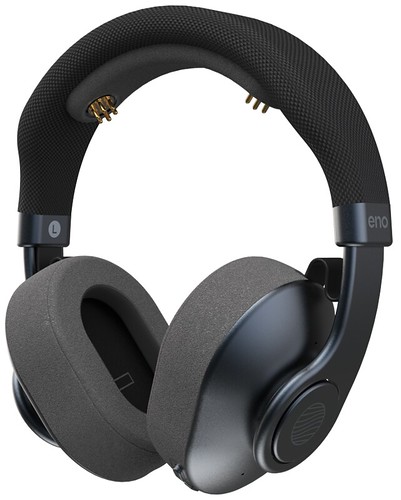
You need to pair your device first.
To create such board you need to specify the following board ID and fields of BrainFlowInputParams object:
BoardIds.ENOPHONE_BOARDmac_address, it’s optional for some OSes. Windows and MacOS can autodiscover paired devices, Linux cannot
Initialization Example:
params = BrainFlowInputParams()
params.mac_address = "F4:0E:11:75:76:78"
board = BoardShim(BoardIds.ENOPHONE_BOARD, params)
Supported platforms:
Windows
Linux
MacOS
Devices like Raspberry Pi
Steps to find MAC address:
On Windows: open device manager, navigate to enophone device, click properties, details, and select Bluetooth Address
On Linux: install bluez-utils and run
bluetoothctl paired-devicesOn MacOS: run
system_profiler SPBluetoothDataType
On Linux in order to compile and use it you may need to install libbluetooth-dev for Debian like systems from apt-get and bluez-libs-devel for Fedora like systems from dnf.
BrainAlive
BrainAlive Device

On Linux systems you may need to install libdbus and we recommend to compile BrainFlow from the source code:
sudo apt-get install libdbus-1-dev # for ubuntu
sudo yum install dbus-devel # for centos
python3 tools/build.py --ble # to compile
To create such board you need to specify the following board ID and fields of BrainFlowInputParams object:
BoardIds.BRAINALIVE_BOARDoptional:
mac_address, mac address of the device to connectoptional:
serial_number, device name
Initialization Example:
params = BrainFlowInputParams()
board = BoardShim(BoardIds.BRAINALIVE_BOARD, params)
Supported platforms:
Windows 10.0.19041.0+
MacOS 10.15+
Linux, compilation from source code probably will be needed
Devices like Raspberry Pi
Mentalab
Explore 4 Channels Board
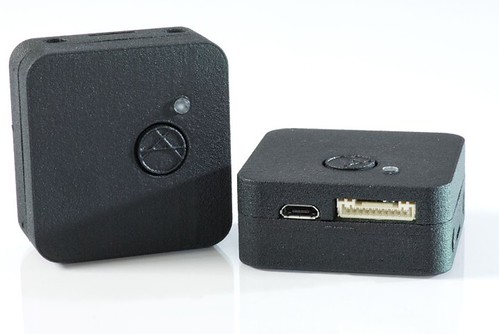
You need to pair your device first.
To create such board you need to specify the following board ID and fields of BrainFlowInputParams object:
BoardIds.EXPLORE_4_CHAN_BOARDmac_address, it’s optional for some OSes. Windows and MacOS can autodiscover paired devices, Linux cannot
Initialization Example:
params = BrainFlowInputParams()
params.mac_address = "F4:0E:11:75:76:78"
board = BoardShim(BoardIds.EXPLORE_4_CHAN_BOARD, params)
Supported platforms:
Windows
Linux
MacOS
Devices like Raspberry Pi
On Linux in order to compile and use it you may need to install libbluetooth-dev for Debian like systems from apt-get and bluez-libs-devel for Fedora like systems from dnf.
Available BrainFlow Presets:
BrainFlowPresets.DEFAULT_PRESET, it contains EEG dataBrainFlowPresets.AUXILIARY_PRESET, it contains Gyro and Accel dataBrainFlowPresets.ANCILLARY_PRESET, it contains battery and temperature data
Steps to find MAC address:
On Windows: open device manager, navigate to explore device, click properties, details, and select Bluetooth Address
On Linux: install bluez-utils and run
bluetoothctl paired-devicesOn MacOS: run
system_profiler SPBluetoothDataType
Steps to connect:
Enable device and Pair it with your laptop using bluetooth settings
Ensure that blue LED is blinking before calling
board.prepare_session()If you see green LED probably you need to reboot a devce
Explore 8 Channels Board
To create such board you need to specify the following board ID and fields of BrainFlowInputParams object:
You need to pair your enophone device first.
BoardIds.EXPLORE_8_CHAN_BOARDmac_address, it’s optional for some OSes. Windows and MacOS can autodiscover paired Enophone devices, Linux cannot
Initialization Example:
params = BrainFlowInputParams()
params.mac_address = "F4:0E:11:75:76:78"
board = BoardShim(BoardIds.EXPLORE_8_CHAN_BOARD, params)
Supported platforms:
Windows
Linux
MacOS
Devices like Raspberry Pi
On Linux in order to compile and use it you may need to install libbluetooth-dev for Debian like systems from apt-get and bluez-libs-devel for Fedora like systems from dnf.
Available BrainFlow Presets:
BrainFlowPresets.DEFAULT_PRESET, it contains EEG dataBrainFlowPresets.AUXILIARY_PRESET, it contains Gyro and Accel dataBrainFlowPresets.ANCILLARY_PRESET, it contains battery and temperature data
Steps to find MAC address:
On Windows: open device manager, navigate to explore device, click properties, details, and select Bluetooth Address
On Linux: install bluez-utils and run
bluetoothctl paired-devicesOn MacOS: run
system_profiler SPBluetoothDataType
Steps to connect:
Enable device and Pair it with your laptop using bluetooth settings
Ensure that blue LED is blinking before calling
board.prepare_session()If you see green LED probably you need to reboot a devce
EmotiBit
EmotiBit board

To create such board you need to specify the following board ID and fields of BrainFlowInputParams object:
BoardIds.EMOTIBIT_BOARDoptional:
ip_address, you can provide broadcast ip address of the network with EmotiBit device, e.g. 192.168.178.255. If not provided BrainFlow will try to autodiscover the network and it may take a little longer.optional:
serial_number, recommended you if have multiple boards in the same network.
Initialization Example:
params = BrainFlowInputParams()
board = BoardShim(BoardIds.EMOTIBIT_BOARD, params)
Supported platforms:
Windows
MacOS
Linux
Devices like Raspberry Pi
Available BrainFlow Presets:
BrainFlowPresets.DEFAULT_PRESET, it contains accelerometer, gyroscope and magnetometer dataBrainFlowPresets.AUXILIARY_PRESET, it contains PPG dataBrainFlowPresets.ANCILLARY_PRESET, it contains EDA and temperature data
PiEEG
PiEEG Board
PiEEG (Measure EEG with RaspberryPi) – Brain-computer interface (EEG, EMG, and ECG bio-signals) is an open-source Raspberry Pi shield that measures biosignals such as those used in electroencephalography (EEG), electromyography (EMG), and electrocardiography (ECG). It integrates seamlessly with BrainFlow’s API, allowing for easy data streaming, processing, and analysis.

To create such a board, you need to specify the following board ID and fields of the BrainFlowInputParams object:
BoardIds.PIEEG_BOARDserial_port(optional), e.g. /dev/spidev0.0, etc. More likely you dont need to change the default
Initialization Example:
from brainflow.board_shim import BoardShim, BrainFlowInputParams, BoardIds
params = BrainFlowInputParams()
params.serial_port = "/dev/spidev0.0"
board = BoardShim(BoardIds.PIEEG_BOARD, params)
board.prepare_session()
board.start_stream()
Supported platforms:
Raspberry Pi
Note: Ensure that you have the necessary permissions to access the serial port on your operating system. For Unix-like systems, you may need to configure permissions for the serial port or run with sudo.
To use this board you need to compile BrainFlow from the source code right on your Raspbery Pi device with flag –build-periphery(build.py) or with -DBUILD_PERIPHERY=ON(CMake) and install desired bindings using local libraries.
NeuroPawn
Knight Board

To create such board you need to specify the following board ID and fields of BrainFlowInputParams object:
BoardIds.NEUROPAWN_KNIGHT_BOARDserial_port, e.g. COM3, /dev/tty.*
Initialization Example:
params = BrainFlowInputParams()
params.serial_port = "COM3"
params.other_info = '{"gain": 6}' # optional: set gain to allowed values: 1, 2, 3, 4, 6, 8, 12 (default)

board = BoardShim(BoardIds.NEUROPAWN_KNIGHT_BOARD, params)
On Unix-like systems you may need to configure permissions for serial port or run with sudo.
On MacOS there are two serial ports for each device: /dev/tty….. and /dev/cu….. You HAVE to specify /dev/cu…..
Supported platforms:
Windows
Linux
MacOS
Devices like Raspberry Pi
Knight IMU Board
To create such board you need to specify the following board ID and fields of BrainFlowInputParams object:
BoardIds.NEUROPAWN_KNIGHT_BOARD_IMUserial_port, e.g. COM3, /dev/tty.*
Initialization Example:
params = BrainFlowInputParams()
params.serial_port = "COM3"
params.other_info = '{"gain": 6}' # optional: set gain to allowed values: 1, 2, 3, 4, 6, 8, 12 (default)

board = BoardShim(BoardIds.NEUROPAWN_KNIGHT_BOARD_IMU, params)
On Unix-like systems you may need to configure permissions for serial port or run with sudo.
On MacOS there are two serial ports for each device: /dev/tty….. and /dev/cu….. You HAVE to specify /dev/cu…..
Supported platforms:
Windows
Linux
MacOS
Devices like Raspberry Pi
BioListener
BioListener

To create such board you need to specify the following board ID and fields of BrainFlowInputParams object:
BoardIds.BIOLISTENER_BOARDoptional:
ip_address, ip address of the machine running the BrainFlow server (not the end device). If not provided, the server will listen on all network interfaces (at 0.0.0.0)optional:
ip_port, any free local port. If the chosen port is in use, the next available free port will be used. If not provided, the search for a free port starts at 12345optional:
timeout, timeout for device discovery, default is 3sec
Make sure to configure the BioListener board as stated in the BioListener documentation to connect to the BrainFlow server.
Initialization Example:
params = BrainFlowInputParams()
params.ip_port = 12345
params.ip_address = "0.0.0.0"
board = BoardShim(BoardIds.BIOLISTENER_BOARD, params)
Supported platforms:
Windows
Linux
MacOS
Devices like Raspberry Pi
Android
iOS
Available BrainFlow Presets:
BrainFlowPresets.DEFAULT_PRESET, it contains EEG (EMG, ECG, EOG) dataBrainFlowPresets.AUXILIARY_PRESET, it contains Gyro, Accel, battery and ESP32 chip temperature data
IronBCI
IronBCI32

To create such board you need to specify the following board ID and fields of BrainFlowInputParams object:
BoardIds.IRONBCI_32_BOARDserial_port, e.g. COM3
Initialization Example:
params = BrainFlowInputParams()
params.serial_port = "COM3"
board = BoardShim(BoardIds.IRONBCI_32_BOARD, params)
On Unix-like systems you may need to configure permissions for serial port or run with sudo.
Supported platforms:
Windows
Linux
MacOS
Devices like Raspberry Pi
Shimmer
Shimmer3
BrainFlow supports Shimmer3 over Bluetooth SPP using the serial port exposed by the operating system. This driver checks the hardware version during session preparation and supports Shimmer3 hardware only; Shimmer3R is rejected.
To create such board you need to specify the following board ID and fields of BrainFlowInputParams object:
BoardIds.SHIMMER3_BOARDserial_port, e.g. COM3, /dev/rfcomm0, /dev/tty.*optional:
timeout, timeout in seconds for receiving the first data packet afterstart_stream, default is 5sec
Initialization Example:
params = BrainFlowInputParams()
params.serial_port = "COM3"
board = BoardShim(BoardIds.SHIMMER3_BOARD, params)
On Unix-like systems you may need to configure permissions for serial port or run with sudo.
On MacOS there are two serial ports for each device: /dev/tty….. and /dev/cu….. You HAVE to specify /dev/cu…..
Supported platforms:
Windows
Linux
MacOS
Devices like Raspberry Pi
Available BrainFlow Presets:
BrainFlowPresets.DEFAULT_PRESET, it contains accelerometer, gyroscope, magnetometer, ECG, EDA, temperature, battery, timestamp, marker, and one additional channel for other enabled Shimmer signals.
Before streaming, the Shimmer3 driver can update device configuration with config_board:
Set sampling rate:
board.config_board("sampling_rate:512"). Shimmer stores the rate as a divider of its 32768 Hz low-frequency clock, so the effective rate may be rounded to the nearest supported divider.Set enabled sensors:
board.config_board("sensors:<hex24>"), where<hex24>is the 24-bit Shimmer sensor bitfield. For example,board.config_board("sensors:0020FC")enables low-noise accelerometer, gyroscope, magnetometer, both 24-bit EXG chips, GSR, and battery.
For sensors:<hex24>, BrainFlow validates the bitfield and allows only one accelerometer
source, one magnetometer source, and one width per EXG chip at a time.
Common sensor bits:
0x000080, low-noise analog accelerometer0x000040, gyroscope0x000020, magnetometer0x000010, EXG1 24-bit0x000008, EXG2 24-bit0x000004, GSR, exposed as EDA0x002000, battery